 KEEP
KEEPHow to delete all screenshots on your iPhone (without regret)
Open Photos, go to Albums, scroll to Media Types, open Screenshots, tap Select, choose the images and tap the trash can. They move to Recently Deleted for up to 30 days. Before you delete, scan for ones with information you still need, such as addresses, codes or recipes.
Coming soon to iPhone
How do I delete all screenshots at once?
Use the Screenshots album.
The screenshots do not disappear instantly. They move to the Recently Deleted album, where iOS keeps them for up to 30 days. To free the space right away, open Albums, Recently Deleted, tap Select, then Delete All. On newer iOS versions this album is locked behind Face ID or your passcode.
- Open the Photos app and tap Albums.
- Scroll down to Media Types and tap Screenshots.
- Tap Select in the top right corner.
- On recent versions of iOS a Select All option appears. If you do not see it, drag a finger across the grid to select many at once.
- Tap the trash can, then confirm Delete.
What should I check before deleting?
Do a ten-minute scan first. Screenshots often hold things that feel disposable but are not. Scroll through the grid at a quick pace and look for:
Move those to a better place. Copy text with Live Text, save tickets to Wallet if the issuer offers it, and put receipts in a folder called Receipts. Then delete the rest. It is the same logic as in the digital declutter checklist.
- Codes, tickets and booking confirmations that you still need.
- Addresses, phone numbers and directions.
- Recipes, workout plans and instructions.
- Conversations that serve as proof, such as an agreement or a receipt.
- Photos you took on purpose by screenshot, like a map route for tomorrow.
How do I delete screenshots as I take them?
Take the screenshot, then tap the thumbnail that appears at the lower left. Tap Done, and iOS offers Save to Photos, Save to Files or Delete Screenshot. Choose Delete Screenshot when you only needed to share it. Pair this with the Share button on the preview to send the image without keeping it.
Can iPhone delete screenshots automatically?
Not as a built-in setting. iOS has no option to remove screenshots after a set time. The Shortcuts app can find and remove photos of a given type, but an automation like this needs care, because one mistake deletes the wrong items. If you try it, test on a small batch, and check Recently Deleted afterwards. A weekly manual pass of two minutes is safer.
What about screenshots in iCloud Photos?
If iCloud Photos is on, deleting a screenshot on your iPhone removes it from your other devices too. That is useful for space. It is also why you should check before deleting. If you delete by mistake, you have 30 days to recover it from Recently Deleted on any signed-in device.
With Optimize iPhone Storage on, full-resolution originals can live in iCloud while the phone keeps smaller versions. Deleting screenshots then frees less local space than you expect. The iPhone Storage screen in Settings, General shows how much Photos actually uses.
Which screenshots are worth keeping?
Keep a screenshot only if it passes one of these tests:
The last row is the largest group for most people. If the image does not explain itself, it will not help you later.
| Test | Keep? |
|---|---|
| It proves something you may need later | Yes, file it in a folder |
| It holds information you cannot easily get again | Yes, but copy the text |
| It has a next step you plan to take this month | Yes, with a note |
| It is a meme, a chat joke or a tip you will not use | No |
| You do not remember why you took it | No |
How do I stop screenshots piling up again?
Most piles come from a single habit: screenshotting instead of deciding. When you see something worth keeping, ask what you will do with it. Then store that action, not the image. A restaurant becomes an entry on your list, a recipe becomes a note, a product becomes a wishlist line.
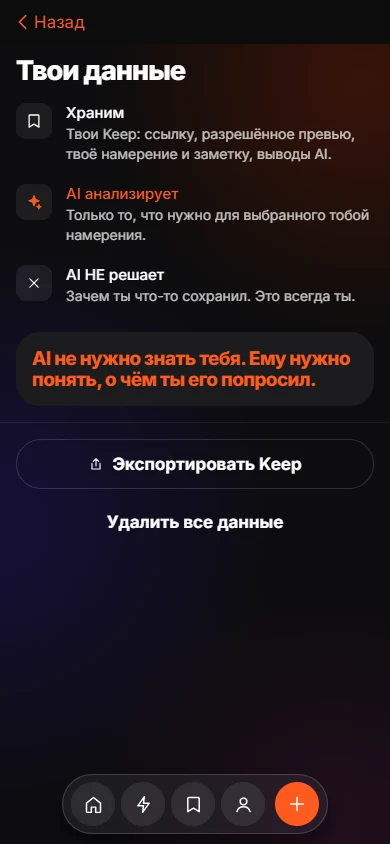
KEEP, an iPhone app in development, supports this. You choose up to 20 screenshots in the photo picker, and the app reads the text, files each into a folder such as Places, Recipes or Shopping and suggests one action per image. After you confirm or choose another action, the item lives in the app with its reason. Your original image stays in Photos unless you delete it yourself. Pressing Delete in KEEP drops the item from KEEP only. The screenshots page has the details, and the privacy page explains that images are uploaded for text recognition, so avoid passwords or private chats.
A five-minute weekly routine
Five minutes a week keeps the count under a couple of dozen. It is much easier than a cleanup of 4,000.
- Open Screenshots and look at the last seven days.
- Act on any that have a next step: copy the text, add to a list, send to someone.
- Select the rest and delete.
- Once a month, empty Recently Deleted.
What if I have thousands of screenshots?
A very large pile is easier in slices. Sort the album so the oldest sit at the top, and select a few hundred at a time by dragging. Delete screenshots older than a year first, since most of their usefulness has expired: sales, event times, one-time codes and chat jokes. Then scan the most recent months more carefully, because those are more likely to hold something live.
Work in short sessions of ten to fifteen minutes. A single long session produces fatigue, and fatigue leads to deleting the wrong thing or giving up. If the phone becomes slow while selecting, close other apps, and let the library finish syncing before you begin.
What about backups before a big delete?
If you worry about losing something, make a backup first. With iCloud Photos on, deletions sync, so iCloud is not a backup of what you delete. Export the screenshots you are unsure about to a folder in Files or to your computer, or keep them in an album that you do not touch. Once you have lived a month without needing them, delete that album as well.
Frequently asked questions
How do I delete all screenshots on iPhone?
Open Photos, Albums, Media Types, Screenshots, tap Select, choose the images and tap the trash can. Then empty Recently Deleted to free the space.
Where do deleted screenshots go?
They go to the Recently Deleted album, where iOS keeps them for up to 30 days before removing them for good.
Can I recover screenshots I deleted by mistake?
Yes, within 30 days. Open Albums, Recently Deleted, select the image and tap Recover.
Does deleting screenshots delete them from iCloud?
With iCloud Photos on, yes. A deletion syncs to your other devices signed in to the same Apple ID.
Why do screenshots take so much space?
Each is small, but thousands add up. Screenshots of videos or long web pages can be large files.
Keep exploring
 Sort Screenshots on iPhone Into Folders With KEEPPick screenshots, let KEEP read them, confirm one suggested action each.