 KEEP
KEEPHow to organize screenshots on iPhone
To organize screenshots on iPhone, open the Screenshots album in Photos, delete the ones you no longer need in batches, move the rest into albums named by purpose, and turn the useful ones into a task or a note. Reading the text on each image is the slow part.
Coming soon to iPhone
Where do screenshots live on iPhone?
The Photos app collects every screenshot automatically in an album called Screenshots, found under Media Types. You take one on current iPhones by pressing the side button and the volume up button together. Because the album mixes receipts, maps, recipes and chats, it grows fast and nothing in it says why you took each image.
How do I clean up in batches?
Start with removal, since most screenshots are temporary. Do it in rounds so that you never decide on hundreds at once.
- Open Photos, then Albums, then Screenshots.
- Tap Select and drag across 50 images at a time.
- Delete the ones you clearly do not need. iOS asks you to confirm.
- Look at what remains and sort it into albums by purpose.
Which albums work best?
Make albums for what you will do, not for where the image came from. A short set is enough.
| Album | What goes in | What to do with it |
|---|---|---|
| To do | Tickets, forms, addresses to act on | Act this week, then delete |
| Ideas | Recipes, outfits, design references | Pick one a week |
| Keep | Receipts, confirmations, codes | File or export once |
| Remove | Anything else | Delete monthly |
What is the slow part?
An image is not searchable by the words inside it unless something reads them. Reading text out of an image is called optical character recognition, and it is why you can later find "red pasta" in a screenshot of a menu.
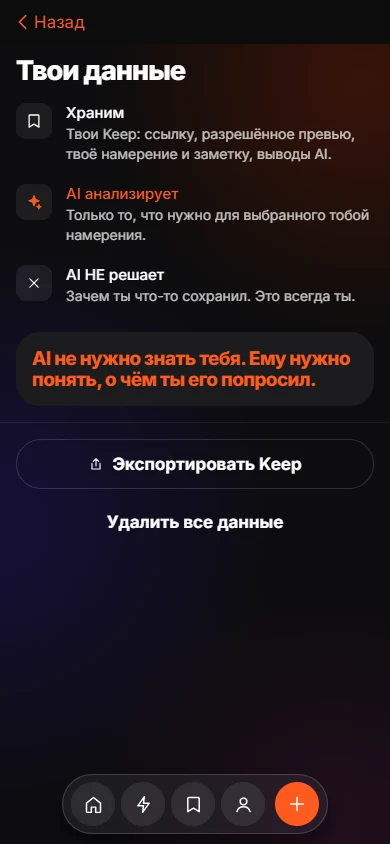
KEEP does this for screenshots you pick. It reads the text, files each image into a folder such as places or recipes and suggests one action. You choose the files, and KEEP does not scan your library. Read how it works.
How do I turn a screenshot into an action?
Ask what the screenshot is for. If the answer is a verb, put it somewhere that reminds you: a calendar event, a to-do item or a reason in KEEP. If the answer is "I do not know", delete it. A screenshot without a next step is clutter that feels useful.
How often should I review?
Once a week for five minutes, or whenever the album passes 100 images. Keep the habit small so that you do it.
A worked example: a 400-image album
Imagine 400 screenshots. Round one, delete 150 obvious leftovers such as old chats and one-time codes. Round two, move 60 receipts and confirmations into a Keep album and export what you need. Round three, 40 recipes, outfits and places go to Ideas. The rest, around 150, are mixed and get a quick yes or no. After about 30 minutes the album has a purpose.
Privacy tips before you upload screenshots anywhere
Screenshots often contain more than you intend: names, addresses, codes, parts of chats. Before sending any to an app, look at what each shows and crop or skip sensitive ones. Check where the app processes the images and whether it keeps them. KEEP uploads only the images you select and says its OCR runs on its own server. The privacy policy lists what it stores.
Common mistakes
Four habits keep the album messy.
- Screenshotting instead of saving a link, so the source is lost.
- Keeping a screenshot "just in case" without a note on why.
- Cleaning by date instead of by purpose.
- Waiting until the storage warning appears.
Frequently asked questions
Do screenshots take a lot of space?
They add up, but the size depends on the images. Check Settings, then General, then iPhone Storage for your own numbers.
Can iPhone sort screenshots automatically?
Photos groups them in the Screenshots album. Sorting by purpose is manual unless you use an app that reads them.
Is it safe to upload screenshots to an app?
Check what the app stores. KEEP uploads only the images you select to its server for text recognition and says so in its privacy policy.
Should I delete after I act?
Yes. A finished screenshot has done its job.
Keep exploring
Sort Screenshots on iPhone Into Folders With KEEPPick screenshots, let KEEP read them, confirm one suggested action each.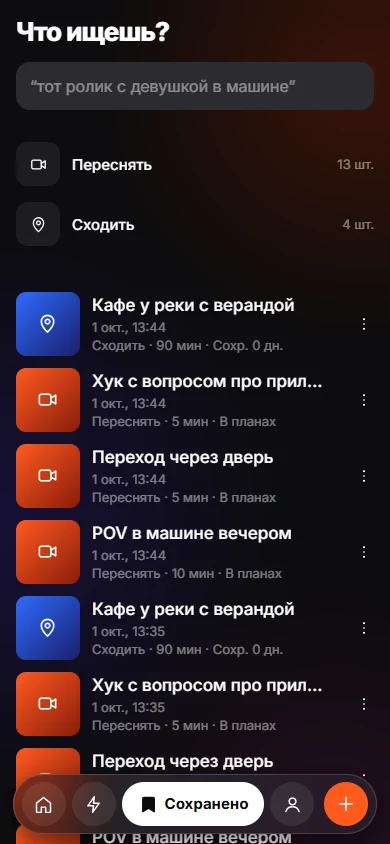 How to Organize Saved Instagram Posts So You Use ThemCollections help you find posts. A reason and a weekly review help you use them.
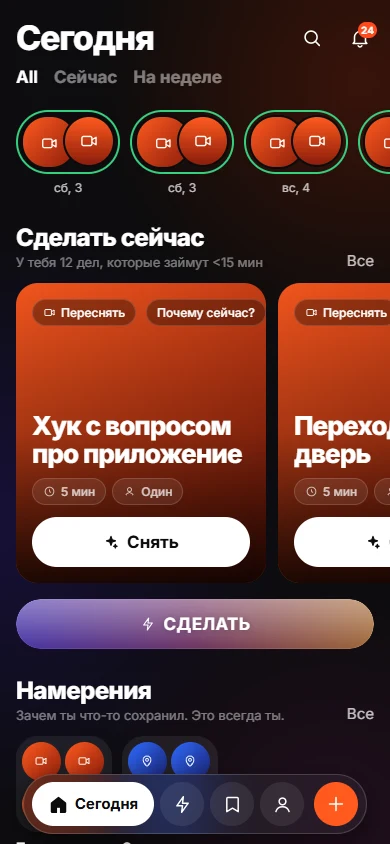 How to Turn Saved Links Into a To-Do List You UseGive each link a verb, minutes and a situation, then work from a short list.